

 Authenticate
 Manage Users
 Customize
 Auth0 AI
 Platform
This section explains how to set up the end-to-end test environment for the Resource App. By configuring your Auth0 tenant as the Resource App Authorization Server, your SaaS application can start accepting incoming ID-JAG requests without requiring any code changes. This enables your SaaS API to generate access tokens in response to these requests, allowing AI agents and other applications to seamlessly consume your API. To set up your end-to-end test environment for the Resource App:Documentation Index
Fetch the complete documentation index at: https://docs-staging-ips-6621-xaa-idp-revamp.mintlify.app/llms.txt
Use this file to discover all available pages before exploring further.
- Configure and register your Resource App: This includes configuring your Auth0 tenant and registering your SaaS application as a Resource App with Okta. To learn more, read Resource App setup.
- Configure the Requesting App to test the end-to-end: This includes registering a test Requesting App in your Auth0 tenant and updating Okta to link it with your Resource App. To learn more, read Requesting App setup.
- Configure how your Auth0 tenant federates with your customer’s enterprise IdP: In our test environment, the enterprise IdP will be your Okta test tenant, representing one of your enterprise customers. To learn more, read Add Organization Support to XAA IdP.
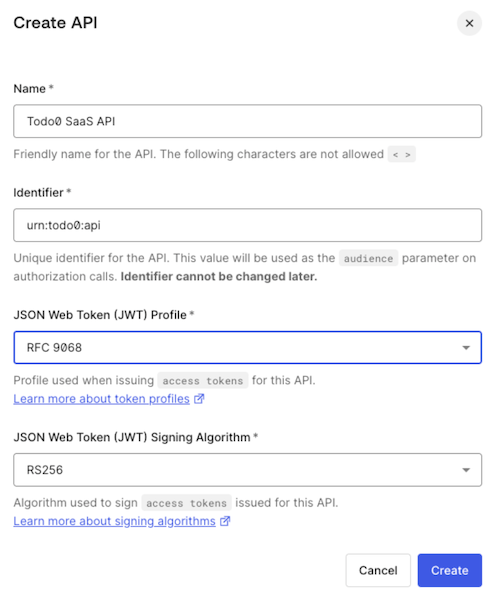
Create the API in Auth0
If you have already created a custom API in your Auth0 tenant, you can skip this section.
Requesting App setup
In a production environment, you configure each Requesting App once to enable its connection with your Resource App.
Create the Requesting App in Auth0
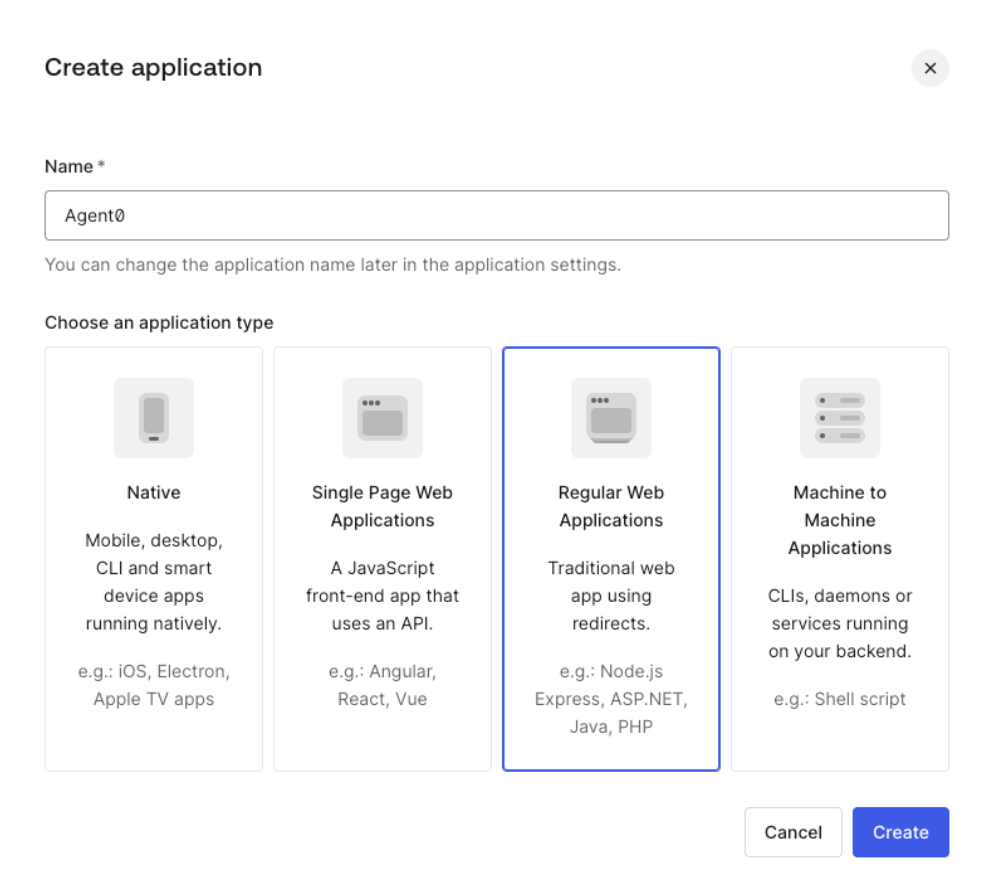
To test the end-to-end environment, create and register an application that behaves as the Requesting App. The application should be a confidential client that can store client secrets, such as a web application. To create an application representing the Requesting App in your Auth0 tenant:- Navigate to Applications > Applications and select Create Application.
- Enter a name and select Regular Web Application.
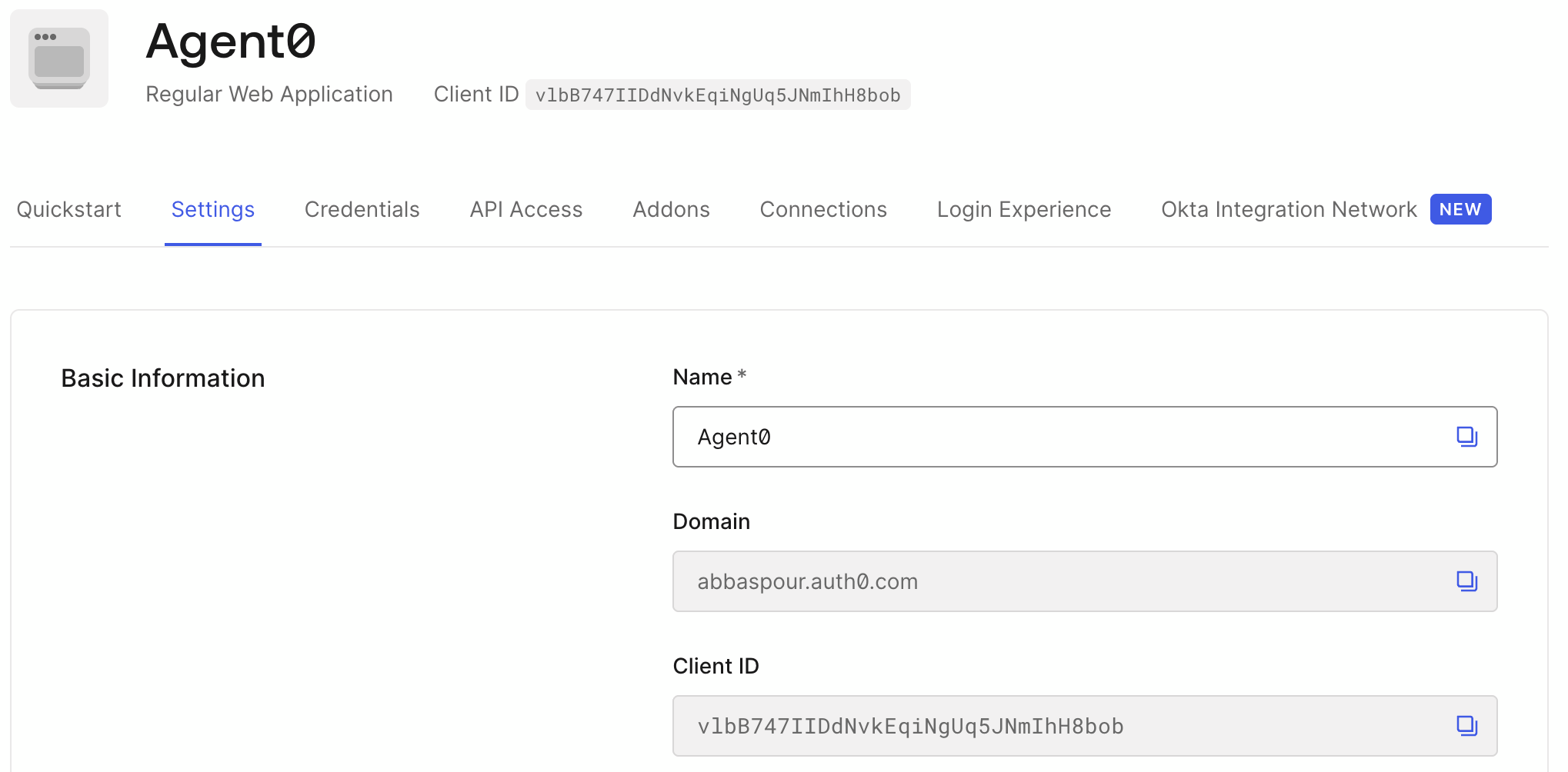
- In the application details, note the Client ID of the application. This is required during Register the Requesting App in Okta.
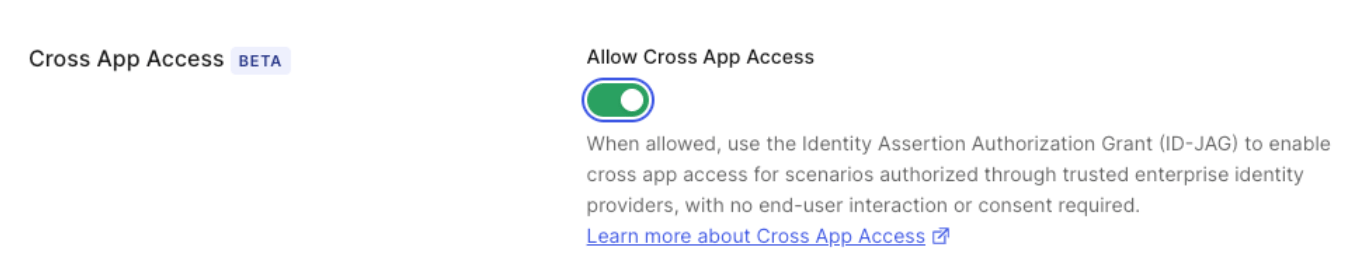
- Once you’ve created the application, scroll to Settings and enable the Cross App Access toggle.
client_id and the issuer URL of your Auth0 tenant. This enables the connection between the Requesting App, identified by the client_id, and the Resource App, identified by the issuer URL. To learn more, read Test the end-to-end XAA flow.
For Okta-specific configuration, see Register the Requesting App in Okta.